Digital signage on any TV, smart TV or monitor
Digital signage TV software: turn any TV into a screen you manage from the cloud
Disign is a digital signage TV software that turns the TV you already own into a managed display. Install the app on an Android TV, plug a small player into the HDMI port of any other TV, or use a professional monitor with a built-in system, then schedule and update your content remotely from your web browser.
- Android TV and Google TV
- Any TV with an HDMI input
- Professional displays
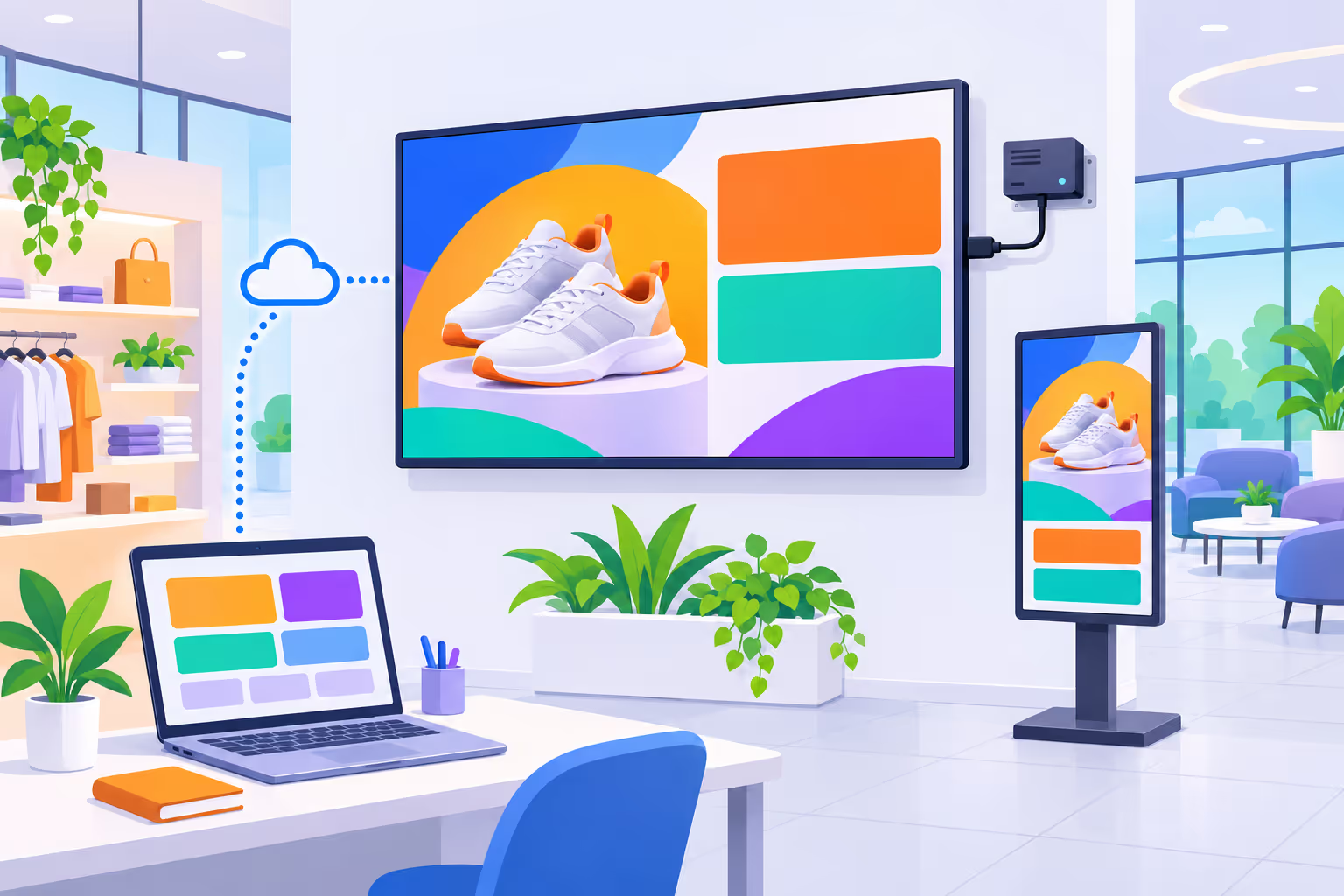
3 ways to turn a TV into a digital signage screen
The right setup depends on the TV or monitor you have. In every case, the screen runs the Disign player and receives its content from the same cloud account.

No extra hardware
Android TV and Google TV: install the app
If your smart TV runs Android TV or Google TV (for example Sony, TCL or Philips models), install Disign from Google Play and pair the screen with your account. Read our guide to Android digital signage for compatible devices and kiosk options.


Any TV with an HDMI input
Any other TV: plug in an HDMI player
Older TVs and smart TVs that do not run Android only need a small player connected to the HDMI port. Choose the Raspberry Pi digital signage player with Disign OS, delivered pre-configured, BrightSign players, or an Android TV box running the digital signage player APK.
Player built into the screen
Professional displays: the screen is the player
Professional monitors with a system on chip run Disign directly, without any box: Samsung Tizen (SSSP), LG webOS, Sony Bravia professional displays, iiyama and TCL. Fewer cables, one device to manage.



Not sure which device fits your TV? Compare all digital signage players supported by Disign.
Which TV digital signage setup is right for your screen?
Start from the screen you have. This table sums up what you need for each type of TV or monitor.
| Your screen | What you need | Extra hardware | Best for |
|---|---|---|---|
| Android TV or Google TV | The Disign app from Google Play | None | A first screen, small shops, quick tests |
| Other smart TV or older TV | An external player connected to the HDMI port | A player and an HDMI cable | Reusing existing TVs, mixed screen fleets |
| Professional display with a built-in system | The Disign app on the display system (Tizen SSSP, webOS, Sony Bravia, iiyama, TCL) | None | All-day operation, clean installations, large networks |
| TV or monitor connected to a computer | The Disign player on Windows or Linux, or a Chrome or Edge browser to test | The existing computer | Demanding or custom installations, trying Disign |
Have a TV on the wall already? Turn it into a digital signage screen today.
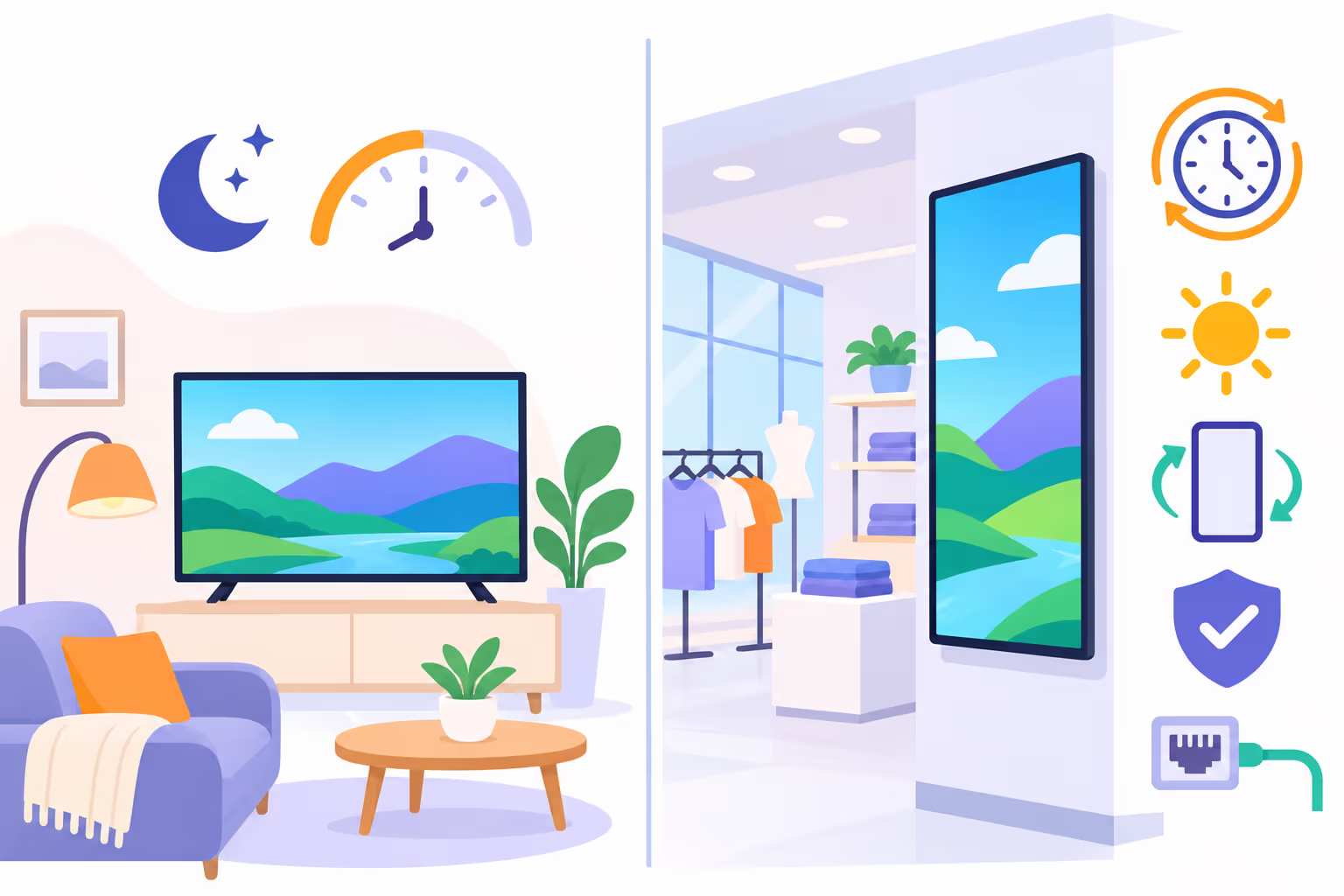
Consumer TV or professional digital signage monitor?
A regular TV is a good way to start. For screens that stay on all day in public spaces, a professional digital signage monitor is built for the job. Here is what changes.
Disign works the same way on both. Start with the TV you already have, then move to professional displays when your network grows, without changing your content or your account.
Where a digital signage TV makes a difference
From a single TV behind a counter to hundreds of screens across sites, the same TV display software adapts to each place.
TV in a store
Promote offers, new products and opening hours next to the shelves or in the window.
In-store displayLobby TV
Welcome visitors, show your news and guide people from the reception area.
Lobby digital signageWaiting room TV
Inform and reassure patients or customers while they wait, with useful and calm content.
Waiting room digital signageMenu board TVs
Turn TVs above the counter into menu boards and change prices or dishes by time of day.
Digital menu boardsOffice and break room TVs
Share company news, KPIs and safety messages with employees who are not at a desk.
Internal communication screensHotel TVs
Display events, services and local information in the lobby, at the bar or near the lifts.
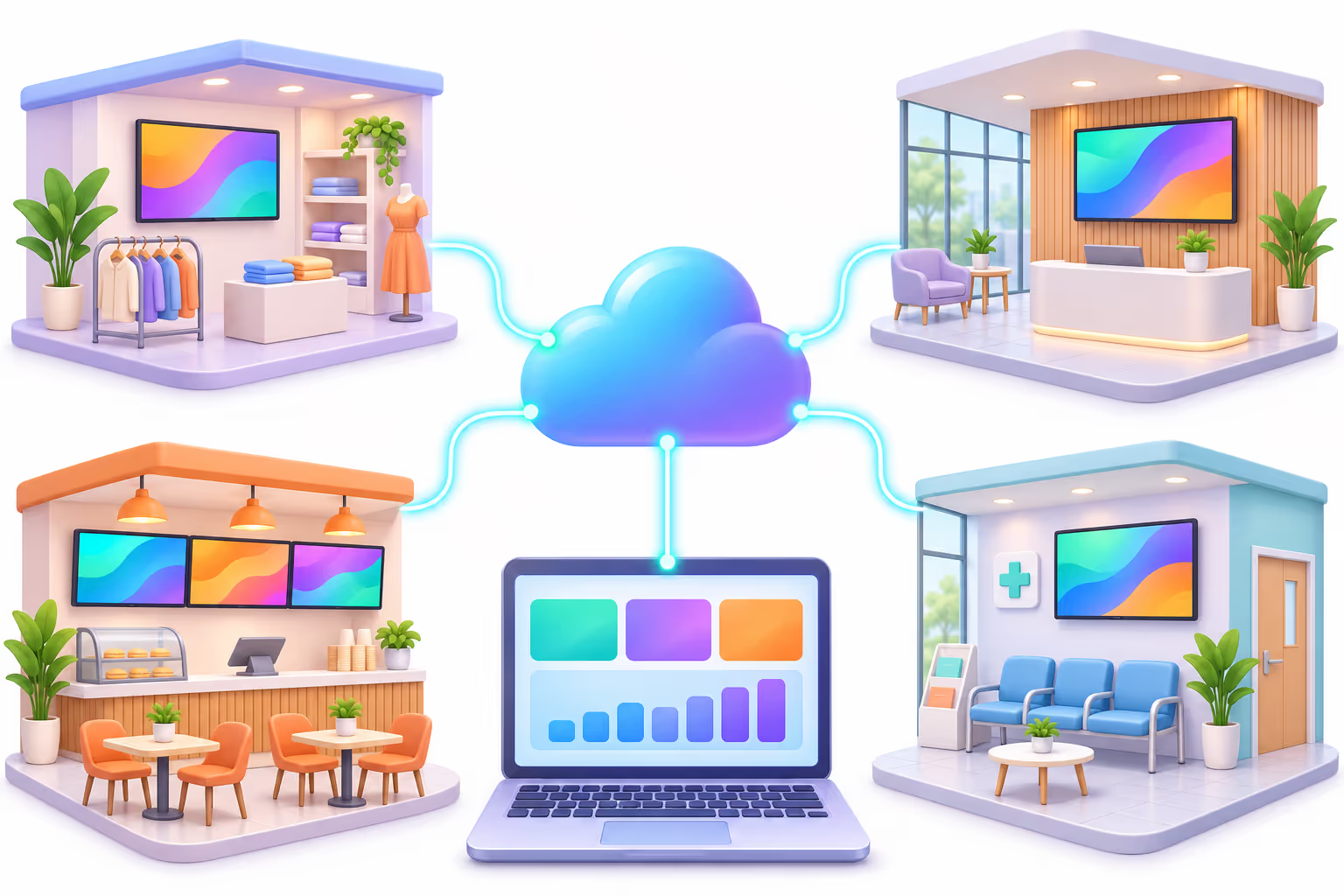
Hotel digital signageManage every digital signage TV remotely from the cloud
Once paired, your TVs are controlled from the Disign Studio, a digital signage CMS that runs in your web browser. As a cloud-based digital signage solution, there is no server to install and nothing to update on site.
Schedule by day and hour
Play the right playlist at the right time on each TV or group of TVs.
Update all screens at once
Publish a change once and every TV in your network receives it.
See the status of each TV
Spot offline screens quickly with screen monitoring and reliability tools.
Keeps playing offline
Content is synchronized on the player, so the TV keeps playing if the connection drops.
Images, videos and live content
Mix media with apps such as YouTube, web pages or live data.
Operating hours
Depending on the hardware, control power and operating hours remotely.
How to set up digital signage on a TV in 4 steps
Turning a TV into a digital signage screen takes a few minutes once the player is ready.
- 1
Create your Disign account
Sign up online. Your organization comes with a 28-day free trial, with no software or server to install.
- 2
Prepare the TV
Install the Disign app on your Android TV or professional display, or connect a player to the HDMI port. Disign players ordered from your account arrive pre-configured and linked to your organization.
- 3
Pair the screen
Create a player in the Disign Studio and enter the code displayed on the TV. The screen is now linked to your account.
- 4
Publish your content
Add images, videos and apps to a playlist, set a schedule and publish. The TV starts playing and receives every update automatically.
Want more details? See how Disign digital signage works and compare the Disign pricing plans.
Digital signage TV: frequently asked questions
Using a TV, a smart TV or a monitor for digital signage: the answers to the most common questions.
What is a digital signage TV?
A digital signage TV is a television or monitor used to display content such as promotions, menus, news or information in a public or professional space. A digital signage player and a software like Disign let you choose what plays on the TV, schedule it and update it remotely.
Can I use a regular TV for digital signage?
Yes. Any TV with an HDMI input can become a digital signage screen. If the TV runs Android TV or Google TV, you install the Disign app directly. Otherwise, you connect a small player such as the Disign player, a BrightSign player or an Android box to its HDMI port.
Do I need a player to use a TV for digital signage?
It depends on the TV. Android TV and Google TV sets, as well as professional displays with a built-in system (Samsung Tizen SSSP, LG webOS, Sony Bravia, iiyama, TCL), run Disign without extra hardware. Other TVs need an external player connected via HDMI.
Can I use Android TV or Google TV for digital signage?
Yes. Install Disign from Google Play on your Android TV or Google TV, then pair the screen with your Disign account using the code shown on the TV. Disign works on Android 7.0 and later.
Does Disign work on Samsung and LG TVs?
Disign runs directly on Samsung professional displays with Tizen (SSSP) and on LG webOS professional displays. For a Samsung or LG TV that is not a professional display, connect an external player to the HDMI port.
What is the difference between a TV and a digital signage monitor?
A consumer TV is designed for a few hours of home viewing. A professional digital signage monitor is designed for long daily or 24/7 operation, often offers higher brightness and portrait mode, and its warranty covers professional use. Many professional monitors also include a built-in player.
Can I manage several TVs from one place?
Yes. All your TVs are managed from the Disign Studio in your web browser. You can group screens, schedule different content per TV or per site and publish updates to the whole network at once.
What happens if the TV loses its internet connection?
Disign synchronizes your content on the player, so the TV keeps playing even if the connection is lost. Updates are applied as soon as the connection is back.
How do I try Disign on my TV?
Create your account to start a 28-day free trial, install the app or connect a player to your TV, and pair the screen. You can start with a single TV and add more screens at any time.
Turn your TV into a digital signage screen today
Start with the TV you already have: install the app or plug in a player, pair the screen and publish your first playlist in minutes. Try Disign free for 28 days.
Planning a larger network of TVs and professional displays? Our team helps you choose the right hardware for each site.