Kiosk mode for digital signage
Kiosk application for digital signage: screens locked on your content
A kiosk application for digital signage keeps a public screen on one single app: no desktop, no settings, no way out. With Disign OS, the Disign player runs in a native kiosk mode, and on Samsung, LG, Android professional displays or BrightSign players, Disign uses the lock features of each device to secure your screens and touch kiosks.
- No desktop, no exit
- Touch ready
- Custom apps embedded
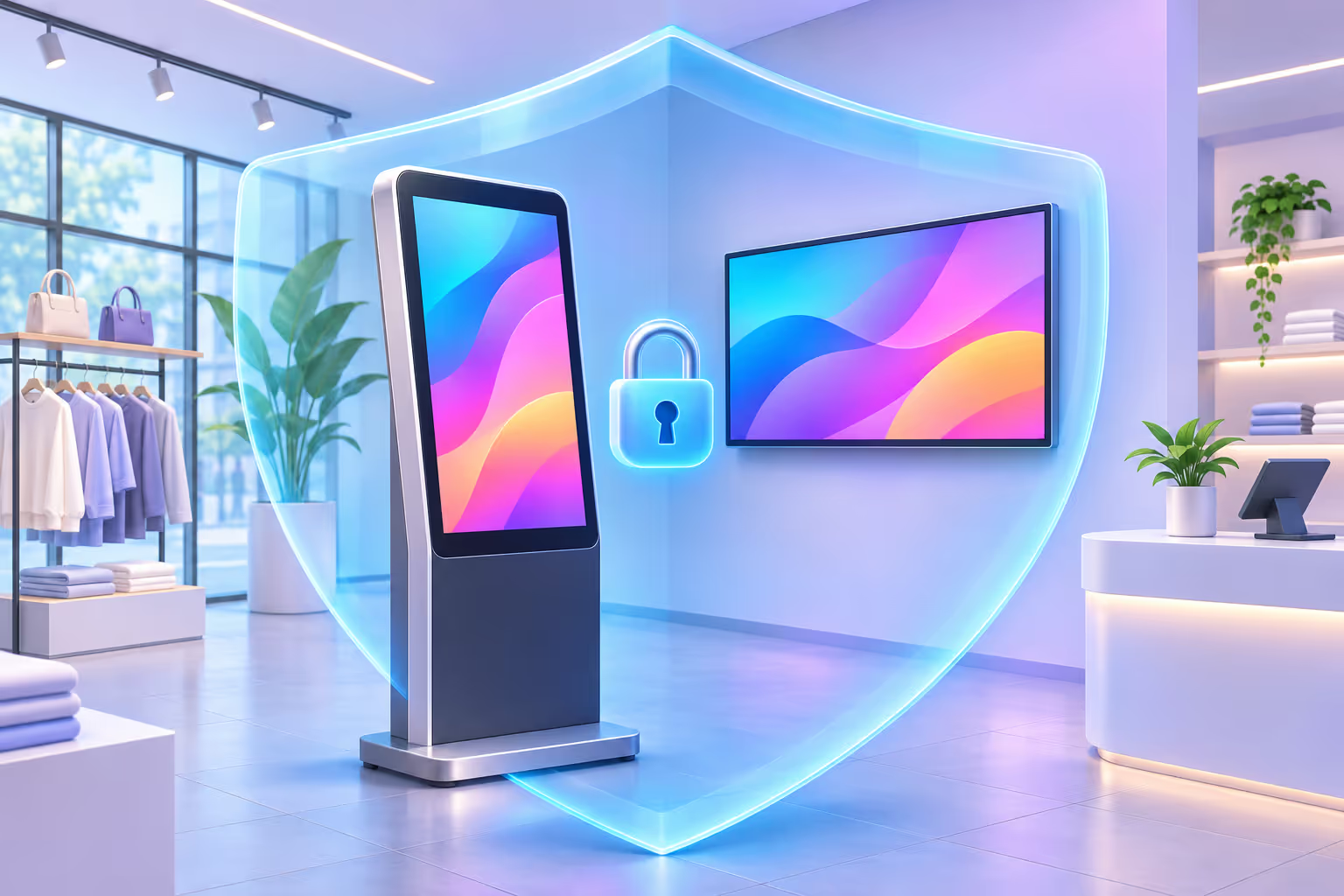
Why run your digital signage application in kiosk mode?
An application presented to the public should run in kiosk mode. It secures external access and avoids bad surprises, and this is even more true as soon as the screen is touch-enabled.
Secure external access
Nobody can leave the app, open a browser, reach the system settings or plug in a USB key to launch something else. Your screen only shows what you decided.
No bad surprises on screen
No pop-ups, no update dialogs, no desktop showing up after a reboot. The kiosk application starts automatically and stays in full screen, day after day.
Essential for touch screens
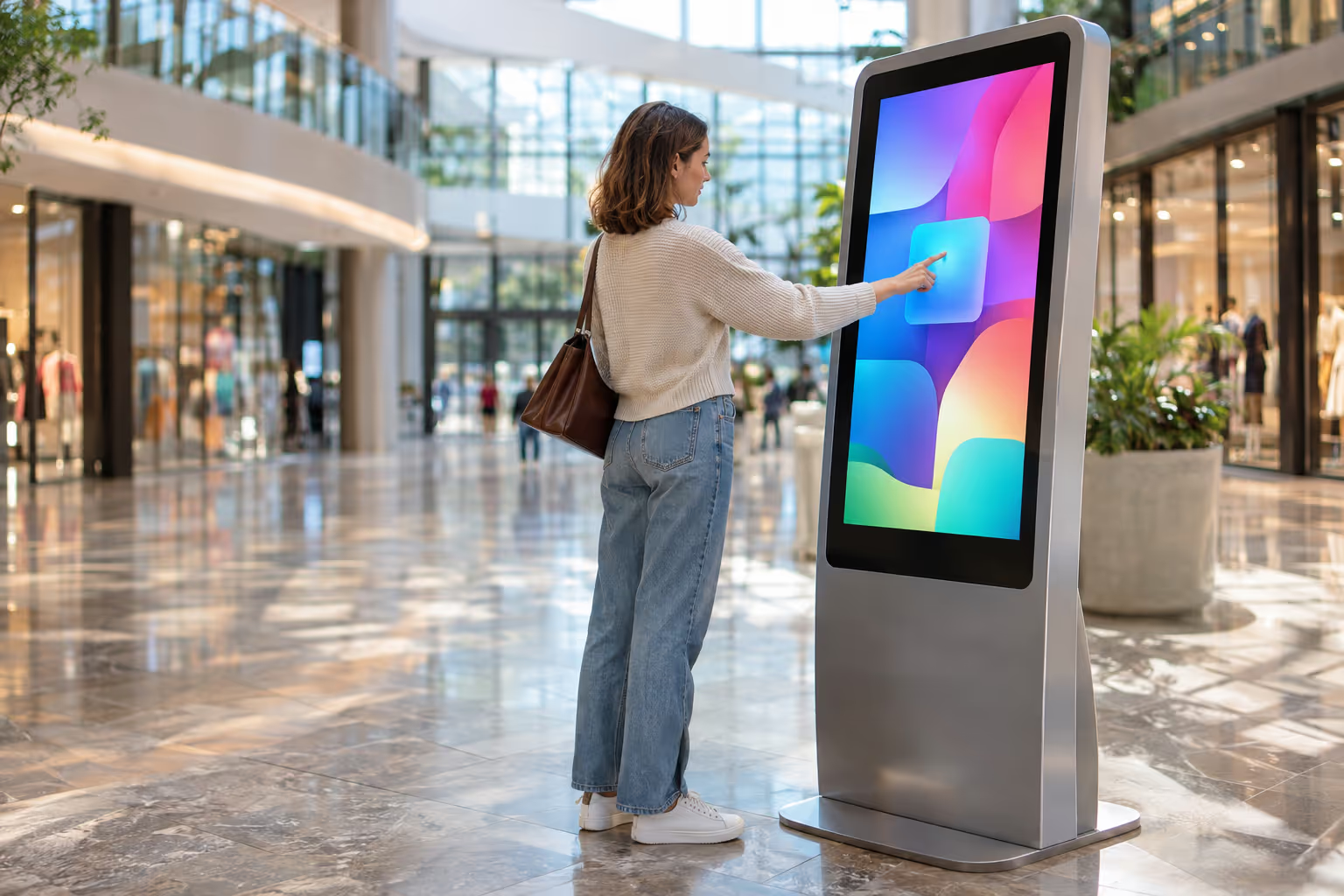
With a touch screen, every visitor holds the controls. Kiosk mode keeps interactions inside your digital signage content, your catalog or your custom app.

Disign OS: a native kiosk operating system built for one application
Disign OS fully isolates the Disign application. It is impossible to leave it or to see a desktop: there is no Windows, no macOS and no general-purpose Linux distribution behind the screen.
The operating system is designed as an embedded system whose only job is to run the Disign kiosk application. Kiosk mode is not an option added on top of a desktop OS: it is the way the device works.
- Boots straight into the Disign player, in full screen
- No desktop, file explorer, browser or app store to reach
- Configured and updated remotely from the Disign cloud
Desktop operating system
- Desktop can show up
- Other apps can be opened
- Kiosk mode to configure
Disign OS
- Only the Disign app
- No way out
- Native kiosk mode
From the hardware to your app: the 6 layers of the Disign kiosk application
Because Disign controls the whole stack on its player, every layer is designed for a locked, reliable digital signage kiosk.
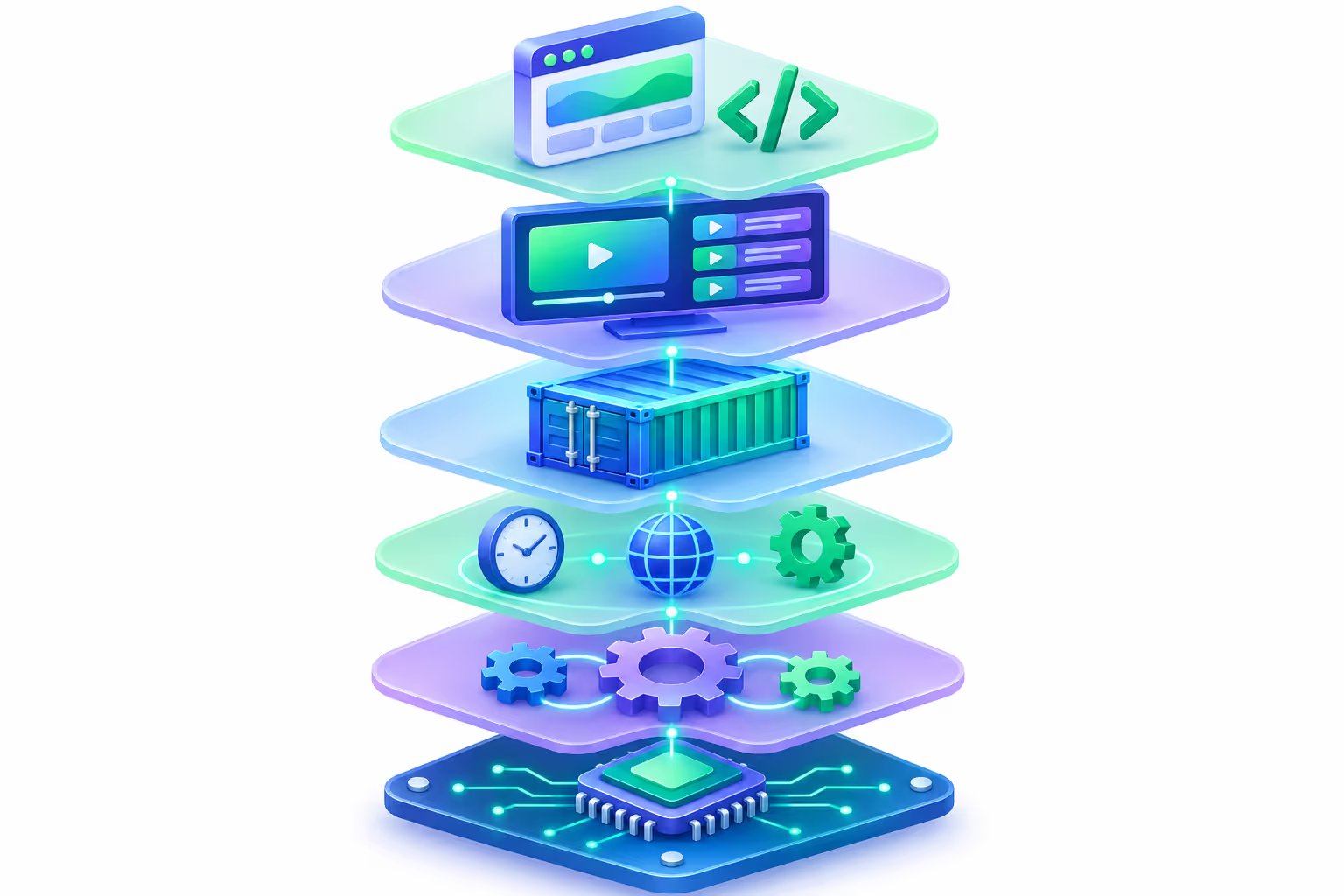
- 6
Your custom application
Embedded web app (iframe) or Web App integrated in Disign features, with the Disign SDK.
- 5
Digital signage or application management
Playlists, scheduling, layouts, interactive content and apps managed from the Disign cloud.
- 4
Disign application container
The isolated environment in which the Disign application runs, without any access to the rest of the system.
- 3
Communication with the system software
System settings such as timezone are driven by Disign, without exposing any settings menu on screen.
- 2
Communication with the hardware
Disign talks directly to the device hardware it runs on.
- 1
Disign OS
An embedded operating system with a native kiosk mode, dedicated to the Disign application.
Run your own custom kiosk application inside Disign
You need more than playlists? Disign can run your tailor-made application in the same locked kiosk environment, in two ways.
Embedded custom application
Your existing web app is embedded in Disign (iframe) and displayed full screen in kiosk mode. The Disign SDK can be used to interact with the player.
- Web app (iframe)
- Disign SDK (optional)
Application integrated in Disign features
Your Web App becomes a Disign app: its files are synchronized locally on the player and it uses the Disign SDK, so it can be scheduled and combined with the rest of your digital signage.
- Web App
- Local sync
- Disign SDK
Kiosk mode on professional displays and digital signage players
Disign installs directly on professional digital signage displays, without any extra player. Each hardware family has its own way to lock the screen on the application.
Native kioskDisign player with Disign OS
The embedded Disign OS only runs the Disign application: no desktop, no exit, kiosk mode by design.
See the players

Samsung and LG professional displays
Professional displays provide built-in lock features: a PIN code is required to leave the application, and the remote control can be disabled, for example on a shop window screen.
Digital signage without a player
 iiyama
Android professional displays
Android is the most varied ecosystem. Professional Android displays (iiyama, TCL, Sony...) add a manufacturer layer dedicated to digital signage, with features that emulate a kiosk mode or let the application switch to kiosk mode itself.

Sony Bravia professional modes
Some displays offer several modes. On Sony Bravia, a settings mode lets you choose which applications may start and other security options. Once switched to pro mode, you get the equivalent of a kiosk mode.
Sony professional displays
BrightSign players
Like the Disign player, BrightSign players are natively built so that the application cannot be left. Setup is managed from the BrightSign cloud interface, so no action is possible on the player side.
Disign on BrightSignOther external players
For Android TV, TV boxes, HDMI sticks and other external players, kiosk capabilities depend on the manufacturer and on the features available on the device.
Disign Android APKIs a kiosk application always necessary for digital signage?
Not always. Kiosk mode can be restrictive: the right choice depends on the context and the environment of each screen.
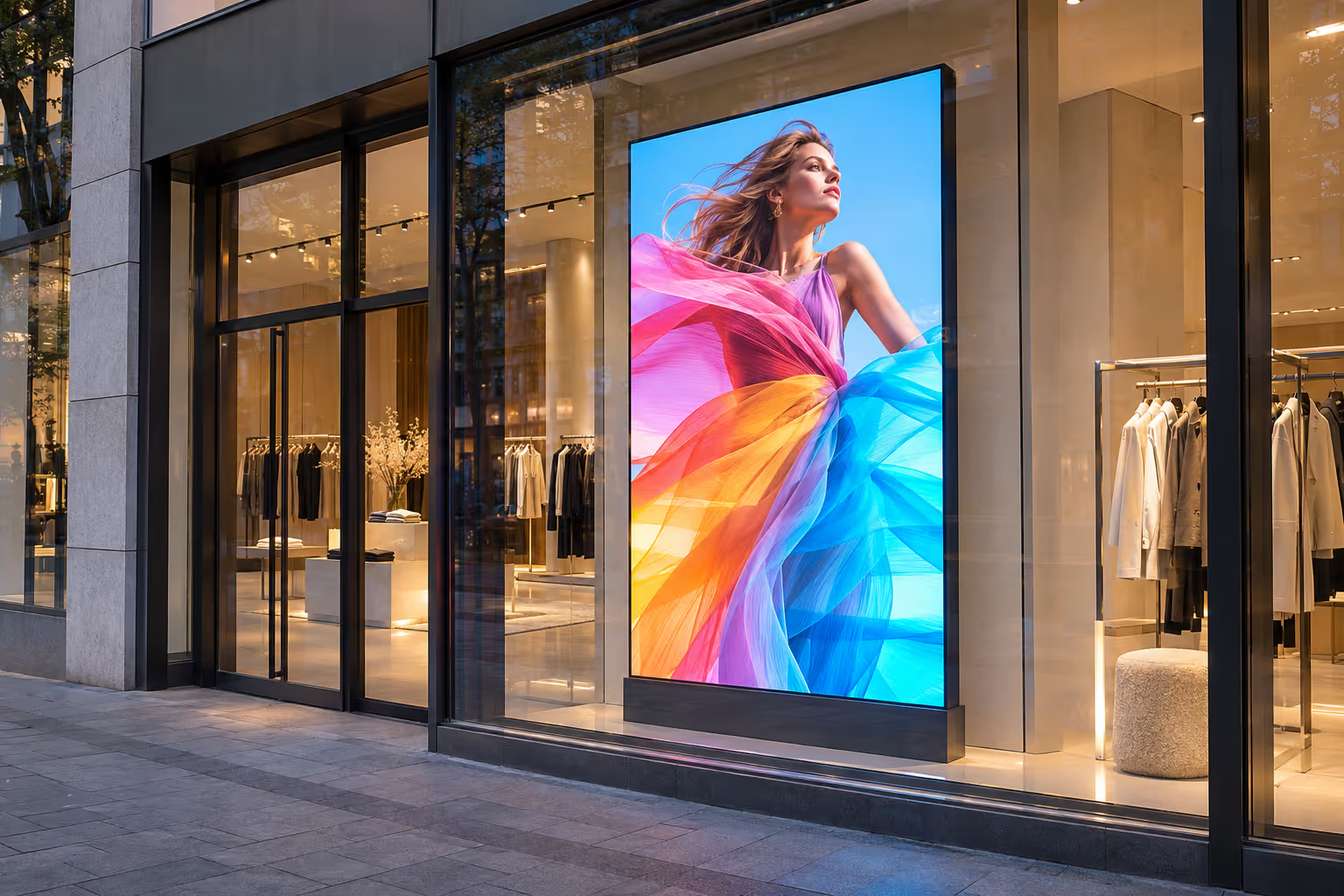
Kiosk mode recommended
- Shop window screens facing the street
- Screens exposed to the public without supervision
- Interactive touch kiosks and wayfinding
Kiosk mode not required
- Screens you use daily and switch to another source
- Screens already secured inside your company
- Screens only available to employees
One kiosk application for many devices, touch included
Disign adapts to a wide range of hardware, supports touch screens and can embed custom applications so they run in a kiosk mode environment.
Many devices supported
Touch screens
Embedded custom apps
Managed from the cloud
Everything you need to know about kiosk applications for digital signage
Kiosk mode, Disign OS, compatible displays and custom applications: answers to the most common questions.
What is a kiosk application for digital signage?
A kiosk application for digital signage is an application locked in full screen on a display. Viewers cannot leave it, reach the system settings or open other apps: the screen only shows the content or the interactive experience you decided.
Why use kiosk mode on a public screen?
Kiosk mode secures external access and avoids bad surprises such as pop-ups, settings menus or a desktop appearing on screen. It is recommended for any application presented to the public, and even more when the screen is touch-enabled.
What is Disign OS?
Disign OS is the embedded operating system of the Disign player. It fully isolates the Disign application: there is no Windows, macOS or general-purpose Linux distribution, no desktop and no way to leave the app. It provides a native kiosk mode dedicated to Disign.
Do I need a player to use Disign in kiosk mode?
Not necessarily. Disign installs directly on many professional digital signage displays, which usually include their own lock features. A player such as the Disign player or a BrightSign player is useful when the display has no compatible system or when you want a natively locked device.
How does kiosk mode work on Samsung and LG professional displays?
Samsung and LG professional displays offer built-in lock features, such as a PIN code required to leave the application and the ability to disable the remote control, which is useful for shop window screens.
Does kiosk mode work on Android displays?
Yes, but it depends on the device. Professional Android displays from manufacturers such as iiyama, TCL or Sony include a digital signage layer that can emulate a kiosk mode or let the application switch to kiosk mode. On Android TV, TV boxes or HDMI sticks, it depends on the manufacturer and the available features.
How do I lock a Sony Bravia display on one application?
Sony Bravia professional displays offer several modes. In the settings mode, you choose which applications are allowed to start and set other security options. Once you switch to the pro mode, the display behaves like a kiosk.
Are BrightSign players in kiosk mode?
Yes. BrightSign players are natively built so that the application cannot be left. Their setup is managed from the BrightSign cloud interface, so no action is possible on the player side.
Can I run my own custom application in kiosk mode with Disign?
Yes. Your web app can be embedded in Disign (iframe), optionally with the Disign SDK, or integrated in Disign features as a Web App synchronized locally on the player and using the Disign SDK.
Is kiosk mode always necessary?
No. Kiosk mode can be restrictive. Screens that you use every day, for example to switch to another source, or screens already secured inside your company and only available internally, usually do not need it. For shop windows and unsupervised public screens, kiosk mode is recommended.
Does Disign support touch screen kiosks?
Yes. Disign supports touch screens and interactive content, and can run custom applications in a kiosk mode environment for touch kiosks, catalogs or wayfinding.
Every screen has its own kiosk mode: let's talk about yours
Apart from the Disign player and BrightSign, each external player and each display works in its own way. Tell us about your hardware, your environment and your application: we will find the right kiosk setup together.
See Disign pricing